- convert video to mp3 without ads
- convert video to mp3
- video to mp3 converter
- mp3 convert
- free mp3 converter no ads
Convert Video to MP3 without Ads
In this guide, you'll learn how to convert video to MP3, how to select a free MP3 converter that is free of ads or has minimal interruptions, how to improve the audio quality, and how to troubleshoot common conversion problems.
Convertora Team11 min read
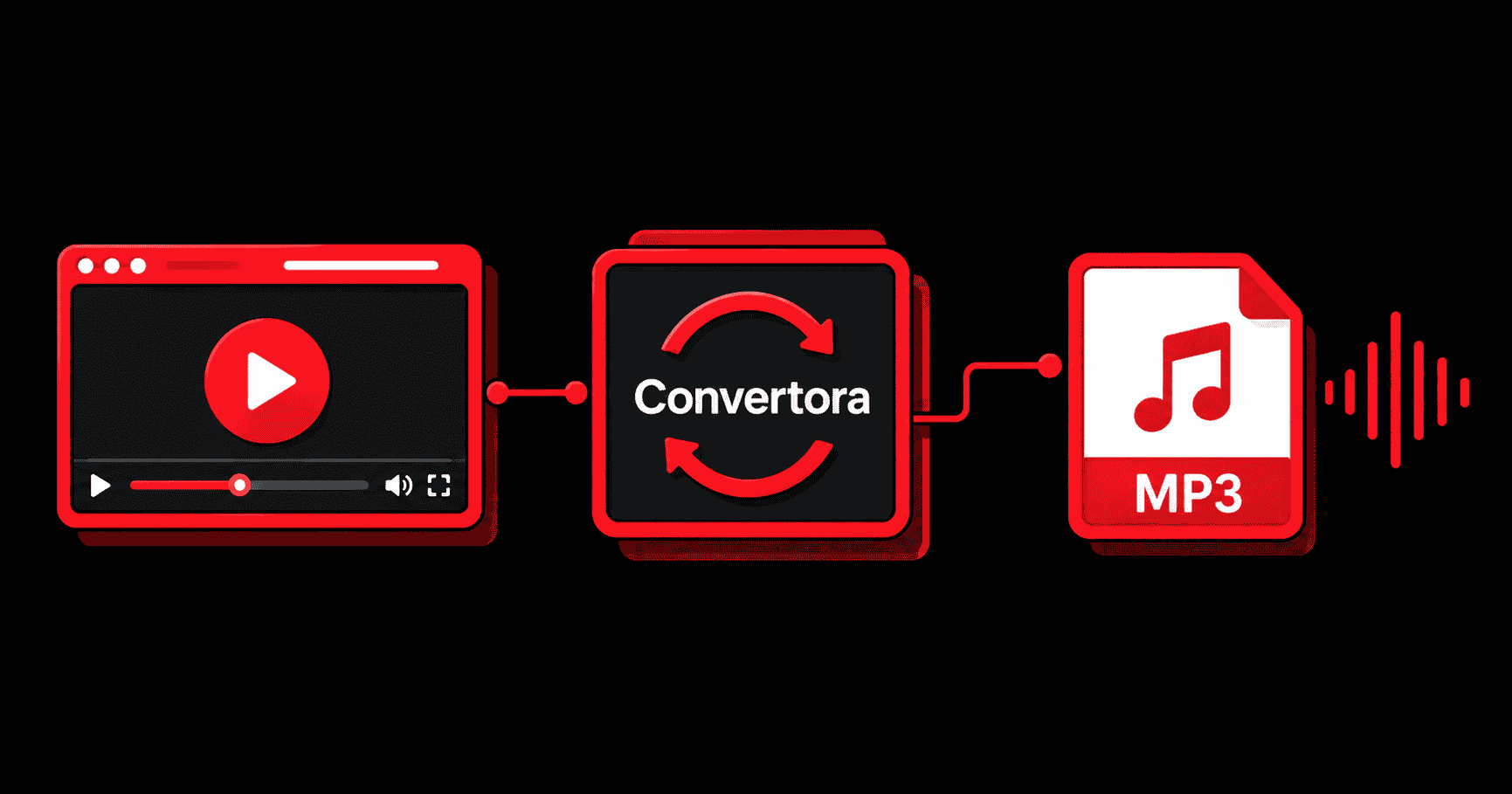
It can be frustrating to find a simple way to convert video to MP3 without ads. Some online converters show you annoying pop-ups, redirect you to unfamiliar sites, or frame the download button with fake buttons. Other sites provide little information about audio quality, privacy or file formats supported.
The good news is converting a video to an MP3 audio file can be easy when you choose the right tool and follow some simple steps.
Whether you want to listen to a personal video, extract audio from your own recording, or save an audio track you have permission to use, the right video-to-MP3 converter should make the process clear and convenient.
Convertora is a website related to the YouTube to MP3 converter. Before using it, see what it currently provides, how it advertises, what inputs are supported, and what the terms are, to see if it fits your needs. Never guess which download button is real or install junk just to convert a compatible file.
In this guide, you'll learn how to convert video to MP3, how to select a free MP3 converter that is free of ads or has minimal interruptions, how to improve the audio quality, and how to troubleshoot common conversion problems.
What Does It Mean to Convert Video to MP3 Without Ads?#
MP3 conversion is the process of taking the audio portion of a video source and saving it in the form of an MP3 file. MP3 is an audio format supported by many of the phones, computers, music players and other compatible devices.
A video file can contain visual data and audio data. What happens is that the MP3 file is an audio file that can play sound, not the moving picture of the video. This can be helpful if you want to:
- Listen to audio content without having a video open.
- Pull audio from your own recordings.
- Turn a presentation or personal video into an audio track.
- Play supported audio content using a compatible music player.
- Reduce file size when you don’t need the visual part anymore.
What is a conversion experience without ads?#
Ad-free experience means that no ads are displayed during the respective process. A low-ad experience could still be ad-supported, but it wouldn’t have the disruptive interruptions. There are multiple types of advertising, which should be distinguished:
- Standard Ads: Ads that appear on a website.
- Pop-ups: Additional windows or overlays that pop up while you are browsing.
- Redirects: Sends you somewhere other than the site you wanted to go to.
- Misleading download buttons: Links that look like the actual download option but lead somewhere else.
Free MP3 converter doesn't automatically mean ad-free. Some offer their services free but subsidize the cost of operation through advertising. Others have other business models.
In addition to advertising, usability, privacy, and trustworthy download behavior should be considered when choosing a converter. A site that looks simple but has no clear privacy information might not be the best place for sensitive files.
How to Convert Video to MP3 Without Ads#
How exactly this works will depend on whether your source is a video file on your device, or a video URL supported by your chosen service.
The following instructions describe the general process of converting a compatible video file. Not all online converters support every step or input method, so don’t assume.
Step 1: Choose a suitable video to MP3 converter#
If you are thinking of Convertora, go to Convertora.us and check the current interface before continuing. Ensure the specific conversion feature you want is present and that it works as advertised. Be wary of sites that tell you to download odd executables or install obscure browser add-ons, or that keep redirecting you around.
Step 2: Validate input format#
If your source file is not supported by the service, you should convert it to a compatible format first using a trusted application. Also, check any published file-size or duration limits before you begin.
Step 3: Choose your video or compatible input#
If you plan to use a video URL, make sure that the service supports this kind of input and that you have the right to download or extract the content.
Don't assume a tool that works with local files will work with a YouTube link, or that all YouTube-to-MP3 services support every video.
Step 4. Select MP3 as your output format#
MP3 is useful if you want wide support on audio players and devices. Other formats may be more appropriate for certain editing workflows, so think about how you plan to use the final file.
Step 5: Select an audio quality setting#
128 kbps or 192 kbps may be sufficient for everyday listening. A setting of 320 kbps can produce a larger file and may be useful if it is important to preserve more detail from a suitable source.
But the choices are limited by the converter, and a higher bitrate cannot bring back audio information lost in the original recording.
Step 6: Conversion begins#
Use the conversion control provided by the service you chose. Then wait for the process to complete and follow the instructions as shown on the actual website.
The time it takes to process depends on a number of factors, including the size of the file, the performance of the device, the memory available and whether the processing is done locally or on a remote server.
7. Download and check the MP3 file#
Once conversion is finished, use the legal download option offered by the service. If the sound is broken or incomplete then try converting the original source again or try a different compatible input file.
How to Choose a Free MP3 Converter With No Ads#
Searching for a free MP3 converter with no ads can produce many options, but the description alone does not prove that a service is completely ad-free. Think about these things before you use one.
1. Advertising actions#
Look for a clean and easy to navigate interface with no decoy buttons or unexpected page changes. If you really need to get rid of ads, read the service itself, not just the description on the search results. A service can be free, with ads. Think of those as different properties.
2. Supported formats#
Be sure the tool supports your source format and converts to MP3. If you work with multiple formats regularly, look for a service that clearly documents what inputs and outputs it supports.
3. Controls for audio quality#
Rather than vague promises of perfect sound, useful converters tell you what quality options you have. Test if bitrate selection is available and if the service maintains the original audio as it should.
4. Compatibility with desktop and mobile#
A browser-based tool can be an easy option if you have a compatible browser and operating system. Try the real workflow on your own device especially if you want to use it on a phone.
5. Privacy and file management#
Find out in the privacy policy if files are uploaded or processed in your browser or stored by the service.
Never assume an online converter automatically deletes files after conversion. If you are working with sensitive recordings, select a workflow that has clear privacy protections that can be verified.
6. Explicit constraints#
Check the current status of the website and the policies that Convertora has published before trusting any specific claims about advertising, security or file processing.
Is it Possible to Convert Video to MP3 Online without Downloading any Software?#
Yeah. You can convert a video file into an MP3 on Convertora file without having to install a separate app. Online conversion has several advantages:
- Convenience: You can use a browser instead of a separate application.
- Accessibility: The workflow could be accessible on different operating systems.
- Less install overhead You may not need to install any additional software for a once in a while task.
But there are also limits to online tools. Others use server-based processing. Don't assume how a particular service works, check its documentation.
If you convert often, have large recordings, or do advanced audio editing, desktop software might give you more control and predictable performance.
Is It Safe to Use Free Video-to-MP3 Converters?#
While a free converter isn’t always unsafe, you should evaluate the service and not assume that every website is safe to use. Take these precautions:
- Avoid dubious redirects and download prompts from unknown sources.
- Never install unknown extensions or executable files for some conversion.
- Read the privacy policy and learn how files are handled.
- Never upload sensitive recordings to services with dubious data policies.
- Use a current browser and enable all security features of your device.
- Before you click on a download link, check the website address.
Be wary of a website requesting you to install extra software to do a conversion that should be able to be done in the browser.
No website should be called completely secure without proper evidence. Extend the same standard to Convertora and other conversion services.
Can You Download YouTube Videos As MP3?#
Converting a local video file is not the same thing as extracting audio from a YouTube URL. A local file converter works with a file available on your device. A YouTube to MP3 tool, however, says it will take a link to a video and extract or process the audio. The availability of that workflow depends on the service and its current capabilities.
Before converting content from YouTube, consider copyright ownership, permission, applicable law and YouTube's Terms of Service.
YouTube’s terms say you can’t download or otherwise use content unless the service has a feature to let you do so or you have permission or the law allows it. Simply because you can watch a video yourself doesn’t give you the right to take the audio from it and share it.
For example, you may convert your own content, or content that has been given permission to download by the rights holder. In other situations, the relevant terms and the law have to be examined more thoroughly.
Before using any YouTube to MP3 workflow, please read the official YouTube Terms of Service. Don’t assume a conversion tool makes all downloads legal or permitted.
Common Issues of Converting Video to MP3 and How to Resolve Them#
Even a simple video to audio conversion can run into technical issues. The following suggestions are not claims of confirmed problems with Convertora but are general.
Unknown file type#
Possible reason: The video uses an unsupported container or codec.
Solution: Check the formats that the converter supports. If you cannot open the file, try to make the source file compatible with your software.
Upload failed#
Possible cause: The file is too large, the connection is unstable, or the browser cannot access the file you selected.
Solution: Check the file-size limit of the service. If necessary, reconnect to the Internet and then try selecting the file again. If this continues to be a problem, try a smaller compatible file.
Conversion interrupted#
Possible reasons: Browser tab closed, device ran out of memory, or network connection interrupted.
Solution: Keep the browser open during processing. Close other applications. Retry with a stable connection if possible.
Bad audio quality#
Possible cause: The source recording is noisy, compressed or low quality.
Solution: Use a better source if available. Adjust the bitrate accordingly. But remember that increasing the bitrate will not recover details that were not present in the original recording.
MP3 File Does Not Play#
Possible cause: The download is incomplete, the file is corrupt, or the audio player is not compatible.
Solution: Check the file extension, try playing with a different trusted audio player, and reconvert if needed.
Phone conversion issues#
Reason: Low memory in device, restriction of browser, connection lost or file access restriction.
Solution: Update your browser, check your available storage and use a supported way of selecting files. If the online workflow continues to be unreliable, consider a reputable application made for your device.
FAQs#
1. How to convert video to MP3 without ads?#
Pick a converter like that Convertora with an interface and advertising behavior that appeals to you.
2. What is the best free MP3 converter with no advertisements?#
No single converter is perfect for every user. Compare advertising behavior, format support, privacy policies, audio quality options, and device compatibility. Always check that a service is really ad-free before you trust it.
3. Yes, you can convert video to MP3 online for free.#
Yes, if you use a service that supports your source and offers free conversion. Before you continue, please review usage limits, supported formats and advertising or privacy conditions.
4. How to Convert MP4 to MP3?#
Launch a converter that can take MP4 input and produce MP3, select your video file, select MP3, select any quality options, and launch the conversion. Download the file that results and play it to verify it works.
5. Is there quality loss when you convert a video to MP3?#
Sure you can.
6. Is it safe to use an online MP3 converter?#
Some services may be relevant, but it is contingent upon how they are implemented and what practices they follow as to whether they are safe or not. Read the privacy policy, avoid dubious redirects and software downloads, and be careful with sensitive media.
7. Can I convert video files to MP3 on a phone?#
Yes, you can use Convertora on any device.
8. Is it legal to convert YouTube videos to MP3?#
That depends on the circumstances, such as who owns the content, whether you have permission, and the applicable law and YouTube’s terms. Use legal downloads or material you have the rights to convert. Don’t assume that a converter makes any download legal.
Final Thoughts#
Locating a suitable way to convert video to MP3 without ads is more than just scanning the first free website you come across in the search results. The best tool for your needs will support your source format, have a clear conversion workflow, offer appropriate audio quality settings, and explain how it handles your files.
Check the advertising practices, privacy practices and limitations of any online video-to-MP3 converter before you use it. Watch out for download buttons you don’t recognize, and always make sure you have permission to convert the content you’re using.
If you need an online conversion option, check out Convertora.us to see what features it has to offer at the moment and if it can satisfy your needs. However, be sure to verify input methods and advertising behavior before relying on any particular feature.